INSTALL · ACTIVATE · EXECUTE
Precision tools require structured execution.
Obsidian Flow installs into NinjaTrader 8 as a single NinjaScript add-on. One licence key activates every product in your plan, on one machine for Starter and two for Professional and Developer. This page covers installation, activation, moving to a new computer, and what happens to your tools if your subscription lapses.
Obsidian Flow installs as a single NinjaScript add-on through NinjaTrader’s own import. You do not need to open the NinjaScript Editor and you do not compile anything — the import does that for you. Once it is in, your tools appear in the indicator list or the SuperDOM column selector depending on the product.
One licence key covers your whole plan. It is entered once, in the licence window, and every indicator and SuperDOM column reads its entitlement from there — so adding a product to your plan unlocks it against the key you already have.
Important: Obsidian Flow tools are designed to provide clarity, structure, and institutional confirmation — not fixed trade signals. Users should backtest, observe, and refine how they apply the tools inside their own execution model.
Customer purchases on the website → receives an automated email → downloads the DLL → installs inside NinjaTrader → pastes the correct license key into the tool → the tool activates on the next load.
You complete checkout for the plan you want.
An automated email from noreply@obsidianflow.tech delivers your licence key and the download link.
Download the add-on file. The link expires after 24 hours.
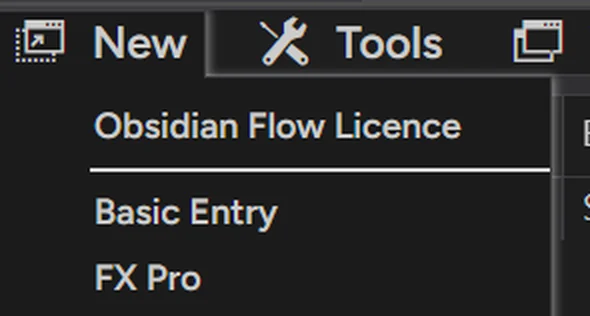
Import it, restart NinjaTrader once, then activate with your key in Control Center → New → Obsidian Flow Licence.
Installation is intentionally simple and uses NinjaTrader’s native import process. Once the DLL is installed, the tools appear in the appropriate indicator or SuperDOM column menus depending on product type.
Launch NinjaTrader 8 and make sure the platform is fully loaded before beginning the import process.
Tools → Import → NinjaScript Add-On, then pick the file from your purchase email. NinjaTrader compiles it as part of the import — there is nothing to build yourself.
Close NinjaTrader completely and reopen it. This one is not optional and you will not be prompted: the licence window attaches itself to the Control Center as that window is created, so it only appears on the next launch.
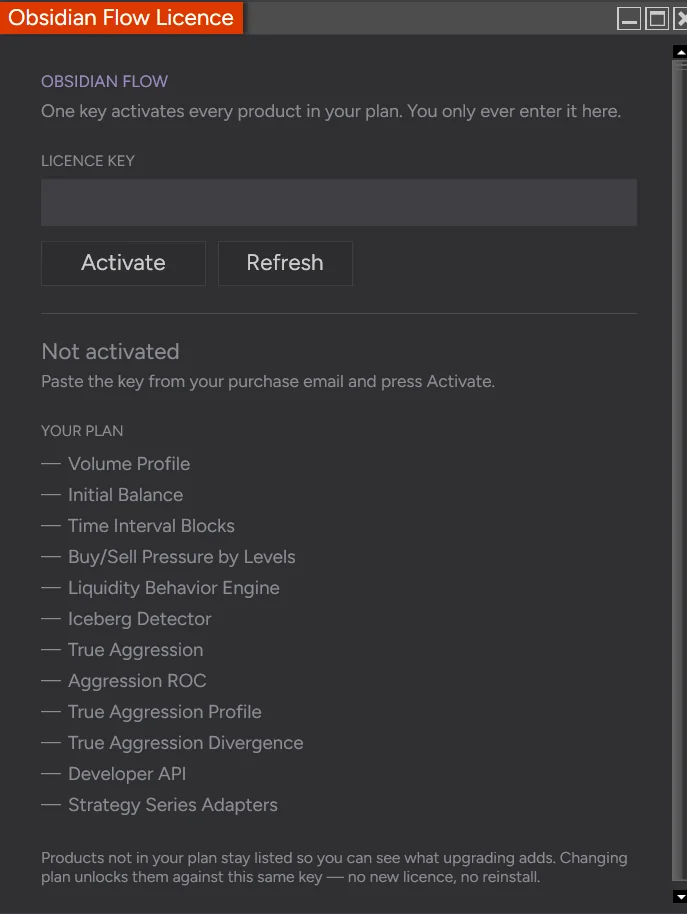
Open Control Center → New → Obsidian Flow Licence and paste your key. Indicators are then in the indicator list and SuperDOM columns in the column selector.
You do not activate tools individually. Your key unlocks everything in your plan, you enter it in one place, and every indicator and SuperDOM column reads it from there.
In the NinjaTrader Control Center, open New → Obsidian Flow Licence. It is the first item in the menu.
Paste the key from your purchase email and press Activate. Your plan appears below, with a tick beside every product it includes.
Nothing stops. Your entitlement is cached locally and keeps working through a grace window, and the licence window shows Active — offline with the deadline. A dropped connection mid-session will not lock you out of your own charts.
Each license is locked to one machine. To transfer a license to a new machine, users should visit
obsidianflow.tech/transfer-license,
enter the purchase email and matching license key, and submit the reset request.
Once the lock is reset, the tool can be loaded on the new machine and will bind automatically after the next validation cycle.
Use the transfer page before loading on a new computer. This prevents confusion and keeps the activation process smooth for legitimate users.
Obsidian Flow tools are subscription based.
If a subscription lapses, the tool stops rendering on the next load.
When the subscription is reactivated, access is restored automatically within minutes.
This keeps delivery simple for the customer while preserving active access control for your platform.
If a tool suddenly stops rendering after a billing issue, the first thing to check is subscription status. Once billing is restored, access should return automatically within minutes.
This page should work as the customer’s clean starting point. From here, they should know how to install, activate, transfer, and maintain access to the tools. Pair this page with your Recommended Settings page and your Transfer License page for a complete first-touch onboarding experience.
For setup issues, activation questions, or access problems, direct users to your support channel and respond with the purchase email plus the product involved.
After installation, users should review your settings guide to establish a clean baseline before they begin personal testing and refinement.
These tools support structured execution. They are not substitutes for observation, backtesting, or responsible decision-making.